Image Compressor
Image Compressor is a privacy-first, browser-based tool designed to shrink image file sizes without sacrificing visual clarity. By utilizing modern web standards, it processes your images locally on your device—meaning your photos are never uploaded to a server. Whether you need to meet strict upload limits or speed up your website, our tool provides the perfect balance between file size and image quality.
Who It Is For
Web Developers & Designers: Optimize assets to improve PageSpeed scores and SEO.
Social Media Managers: Quickly resize and convert high-res photos for Instagram, LinkedIn, or X (Twitter).
Job Applicants: Compress large headshots or portfolio images for application portals with strict 2MB limits.
E-commerce Sellers: Batch-ready your product photos for Shopify, Etsy, or eBay.
Everyday Users: Free up space on your phone or computer by shrinking bulky photo libraries.
How to Use
Upload: Click the “Choose Image” button or simply drag and drop your file into the dashed box.
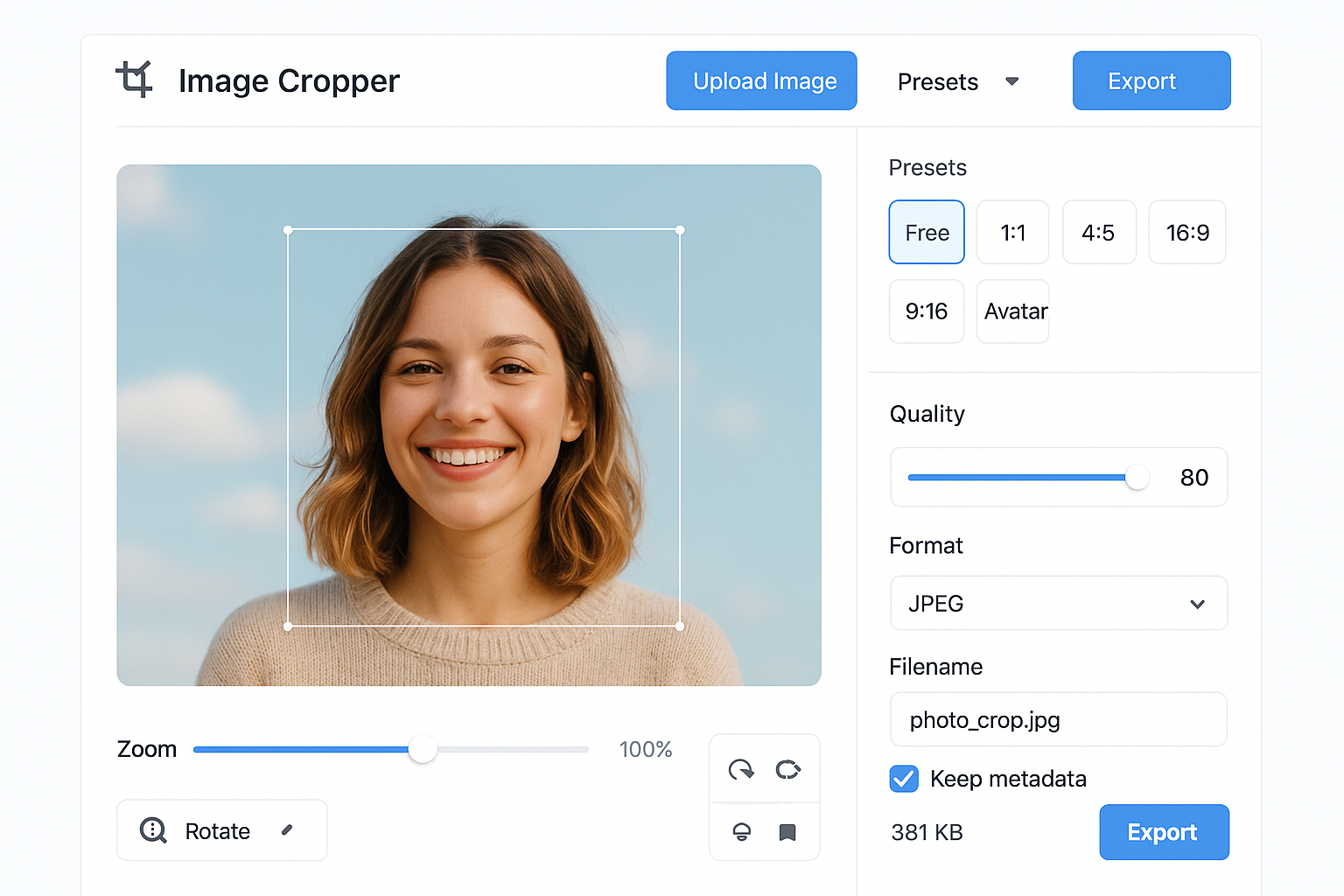
Configure: * Format: Choose JPEG for photos, WebP for modern web performance, or PNG for high-quality graphics.
Quality: Slide the bar (80% is the “sweet spot” for web).
Resize: Enter a new width in pixels if the original image is too large.
Process: Click “Compress & Process.”
Compare & Save: Look at the “Result” preview to see the new file size. If you’re happy, click “Download Image.”
Frequently Asked Questions (FAQ)
Q: Is my data safe? A: Absolutely. Unlike other online compressors, our app works 100% offline in your browser. Your images are processed locally and are never sent to a cloud server.
Q: What is the best format to use? A: * WebP: Best for websites (highest compression).
JPEG: Best for standard photographs.
PNG: Best for logos or images with transparent backgrounds (note: PNG compression is “lossless,” so files remain larger).
Q: Does resizing the width affect the height? A: Yes. The app automatically calculates the height based on the original aspect ratio to ensure your image doesn’t look stretched or squashed.
Q: Why did my file size increase? A: This can happen if you try to compress a file that is already highly optimized, or if you convert a highly compressed JPEG into a lossless PNG. For the best results, start with high-resolution originals.
Q: Is there a file size limit? A: There is no hard limit imposed by the app, but very large files (e.g., 50MB+) may depend on your computer’s available memory (RAM).