Crossword Puzzle Generator – Free Printable Crossword Maker

Who This Tool Is For
Perfect for:
Classroom teachers creating vocabulary or topic-based crosswords
ESL / EFL teachers designing language practice activities
Tutors and intervention specialists building custom revision packs
Homeschooling families who want fun, printable learning games
Content creators, bloggers, and newsletter authors who want quick interactive puzzles
Create Printable Crosswords in Seconds – No Design Skills Needed
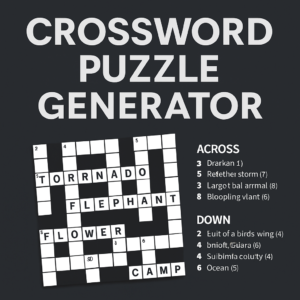
The ToolsNApps Crossword Puzzle Generator lets you turn any word list into a clean, classroom-ready crossword with just a few clicks. Add your own words and clues, choose a grid size, and instantly generate professional-style puzzles in a classic black-and-white layout that’s perfect for printing, worksheets, revision packs, and homework.
Designing crosswords by hand is slow and painful. This tool does all the hard work for you:
automatically lays out words on the grid
numbers Across and Down clues
calculates difficulty
and lets you export student and teacher (with answers) versions as PDF or PNG.
Whether you’re a teacher, tutor, homeschooler, or content creator, this crossword maker gives you flexible control and polished results every time.
Build crosswords your way: use quick simple input for fast puzzles or switch to the table editor to fine-tune every word and clue. Import word lists from CSV, auto-fill missing clues with an AI-style helper, and let the tool estimate difficulty based on grid layout and intersections. When you’re happy, export student and teacher PDFs in one click—each puzzle clearly branded with Created by toolsnapps.com in the footer.
Key Features
Key Features of the ToolsNApps Crossword Puzzle Generator
Two input modes
- Simple Input – type one word (and optional clue) per line, e.g.
APPLE - A fruit that keeps the doctor away. - Table Editor – edit words and clues in a spreadsheet-style table for more precise control.
CSV Import
Import word lists directly from a
.csvfile.Supports basic
word,clueformat and maps common column names automatically.
AI-Style Clue Helper
Click once to auto-fill missing clues in the table editor.
Generates short, crossword-style hints you can freely edit before generating the puzzle.
Smart Grid Layout
Automatically places words on the grid with logical intersections.
Supports multiple grid sizes (small to large) for different age groups and difficulty levels.
Auto Difficulty Rating
Calculates an approximate difficulty based on word length, intersections, isolation, and grid size.
Shows the difficulty in the interface and on the exported puzzle as Easy / Medium / Hard / Very Hard (auto).
Student & Teacher Versions
Student version – blank grid (no letters), numbered clues only.
Teacher version – same grid with all solution letters visible (perfect answer key).
Dedicated Student PDF and Teacher PDF buttons for instant exports.
Multiple Export Options
Print directly from the browser in a clean, newspaper-style layout.
Download as PNG image for slides or documents.
Download as PDF (student or teacher), ready for sharing or printing.
Classic Print Look
Dark modern UI while editing, then switches to a crisp black-and-white print style for exports.
Includes title, date, and difficulty line at the top and a subtle “Created by toolsnapps.com” footer on every exported puzzle.
100% Browser-Based
Runs entirely in your browser – no sign-up, no login, no installation.
Works on modern desktop browsers and larger tablets.
How to Use the Crossword Puzzle Generator
Step 1 – Choose Your Input Style
At the top of the tool, pick one of two modes:
Simple Input – best for quick puzzles and short lists.
Table Editor – best for larger lists, CSV import, and detailed editing.
Step 2 – Add Your Words and Clues
Option A: Simple Input
In the textbox, type one word per line.
To add a clue, use a dash
-or colon:after the word.Example lines:
SUN - Star at the center of our solar systemMOUNTAIN: Tall natural elevationRIVER(no clue – the tool will mark it as “(no clue provided)”)
Option B: Table Editor
Switch to Table Editor.
Click + Add Row to add a word.
Type your word in the Word column (letters only; spaces and symbols are removed).
Type your clue in the Clue column (optional).
Use the ✖ button to remove any row you don’t need.
Step 3 – (Optional) Import from CSV
Switch to Table Editor.
Click Import CSV and select your
.csvfile.The tool fills the table with your words and clues automatically.
You can still edit any word or clue after import.
Step 4 – (Optional) Auto-Fill Missing Clues
In Table Editor, click AI: Fill Missing Clues.
The tool generates short, generic clues for any empty clue cells.
Review and edit these clues as needed before generating the crossword.
Step 5 – Set Date, Difficulty & Grid Size
Date – set today’s date or the date you’ll use the worksheet.
Difficulty – choose your own level or leave it on Auto and let the generator estimate difficulty.
Grid Size – choose a grid size (e.g. 10×10, 12×12, 15×15). Larger grids fit more / longer words.
Tip: If your longest word is too long for the selected grid, the tool will warn you so you can pick a bigger grid or shorten the word.
Step 6 – Generate the Crossword
Click Generate Crossword.
The tool:
Lays out the words on the grid
Adds black squares where needed
Numbers the starting squares
Splits your clues into Across and Down with word lengths (e.g.
(7)).
If some words can’t be placed, you’ll see a message telling you which ones were left out.
Step 7 – Show or Hide the Solution
Use the Show Solution / Hide Solution button above the grid:
Show Solution – reveals all letters on the grid.
Hide Solution – hides letters again, leaving a blank student-style grid.
This toggle is just for your on-screen view; exports handle student/teacher modes automatically.
Step 8 – Export for Students and Teachers
You have several export options:
Print – opens the browser print dialog with a clean black-and-white layout.
PNG – saves the full puzzle (grid + clues) as an image.
PDF – uses the selected role from the dropdown.
Student PDF – always exports a blank grid with clues (no letters).
Teacher PDF – always exports a solution grid with letters visible (answer key).
Every exported puzzle includes:
Title (“Crossword Puzzle” or your configured title, if added later)
Date and difficulty line
Full Across and Down clues
Footer: Created by toolsnapps.com
Ideal for printing, sharing, or uploading to your LMS or VLE.