
Complete Canva Video Editor Tutorial:
AI-Powered Video Creation Guide
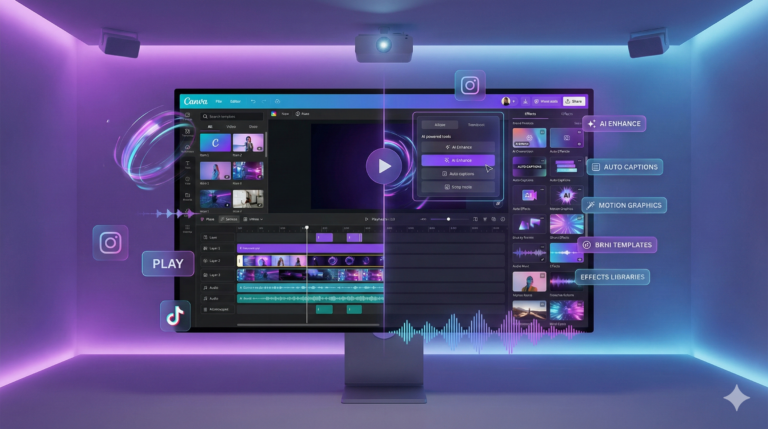
- Last Modified -
Welcome! To get started, search for “Canva and Affinity” using your preferred search engine. You’ll notice a result near the top—usually from Canva itself—indicating that Affinity is available at no cost for Canva users. Click on that link to access detailed information about claiming your free Affinity access through your existing Canva subscription.
On that page, you’ll discover which subscription tiers qualify for this offer, along with the terms and conditions you’ll need to follow when signing into Affinity using your Canva credentials. Step-by-step setup instructions are provided to help you connect your accounts seamlessly.
The type of Canva subscription you hold will influence certain aspects of your experience and the features available to you. When you navigate to your Canva dashboard and select the Canva AI option, you’ll find various tools that enable you to interact with the platform’s artificial intelligence. Simply enter your prompt or question, just as you would with ChatGPT or Gemini, and Canva’s AI will respond accordingly.
A comprehensive video tutorial is available that guides you through both the updated Affinity interface and the latest Canva features. To learn more about accessing this course, follow the link displayed on your screen.
Welcome! To begin using Affinity through Canva, the help documentation indicates you’ll first need to download and install Affinity by Canva. There’s a download link available on the help page that you can use. When you’re signed into your Canva account, simply click the option to sign up and download the software. A welcome message will appear confirming that Affinity is now accessible via your Canva credentials, and you should already be authenticated.
Before proceeding, this is an ideal moment to review the Terms of Use, the supplementary Affinity Terms of Use, and the privacy policy if you haven’t done so already. You might consider copying these documents into an AI assistant like Gemini or ChatGPT for easier review. Once you’ve examined the terms and find them agreeable, you can proceed by clicking Continue.
Select the appropriate version for your operating system—either Mac or Windows—and begin the download. The Affinity installer will launch, and you’ll need to click Install to proceed. As with any software installation, it’s essential to verify that this program is compatible with and safe for your computer system. If there are any concerns about security or compatibility issues with your current setup, you should reconsider the installation. For the purposes of these instructions, we’ll assume you’ve confirmed the installation is secure for your device.
After clicking Install, Affinity will complete its installation procedure. Once finished, the application will open on your desktop. You can then sign in to your Affinity account using the same login information from your Canva account. A launch screen will appear, allowing you to open Affinity on your computer, completing the installation process. That wraps up this guide—see you in the next video!
Welcome! Canva has recently enhanced its video capabilities with what they’re calling Video 2.0, depending on when you’re watching this. To access these updated video features, simply navigate to the Canva homepage and select the video option—the new tools will then become available. You can also utilize Canva AI for video creation by selecting the video clips feature.
When you choose video clips, you’ll find the available tools displayed in a dialog box within this section. At the bottom of your screen, you’ll see suggestions and ideas for utilizing the AI effectively. Beyond these presets, you can also provide custom prompts to Canva’s AI to generate the specific type of video you envision. The AI offers options to select your preferred visual style, adjust the orientation, incorporate audio if desired, specify particular frames, and control lighting settings for your project.
While this example shows text-based input, you can alternatively use voice commands to control the interface. This means you can achieve the same results using a mobile device, provided you’re logged into your Canva account. If you’d like your video to be based on a particular image, you can upload it in the designated area. The interface functions similarly to other chatbot platforms—simply click Enter to submit your request. Keep in mind that video generation takes some time to process.
We’ll pause here and resume once the video has finished rendering within Canva. As you’ll see, the completed video is one of a set number we can create using Canva’s AI based on our subscription plan. Once generated, you can download the clip directly to your computer. Additionally, clicking on the video reveals extra editing tools that Canva has recently introduced in its Video Editor. As indicated in the upper left corner, we’re currently working within the Video Editor beta version. We’ll explore the Video Editor beta features more thoroughly in the upcoming video.
Thanks for watching, and I’ll see you in the next one!
Welcome back! The updated video editor enables you to arrange multiple elements on a timeline for more sophisticated editing. As you can see with this example, audio can be added to the timeline even if it wasn’t included when the video was initially generated. By selecting the Add Audio option in this section, you have the choice to either record your own voiceover or generate one using AI. Let’s choose Record voiceover.
“Scanning books is the key to new AI information.” We’ve now successfully added a voiceover layer to this video, and you can incorporate any type of audio you prefer. You can adjust your view of the timeline by using the zoom controls—clicking on the zoom page allows you to zoom in and out of the timeline view. When you disable the zoom page feature, you can instead zoom in and out on the video thumbnail itself.
Any component can be layered onto your video. For instance, you can locate a desired element and simply drag it onto your video canvas. You can resize it to match your creative vision and position it wherever you’d like it to appear within the video frame. Then you can place it at the precise moment on the timeline where you want it to show up, allowing you to stack multiple effects throughout your video.
Trimming your video is also straightforward—click on the video clip, right-click, and select the split option. This splits the video at the current cursor position. You navigate the timeline by clicking and dragging the playhead handle backward and forward. You can also incorporate visual elements like audio waveforms. Simply search for an audio waveform, and when you find one you like—in this case, one from the free library—drag it onto your video representation.
You can adjust its size, and you’ll notice the waveform now appears on the timeline. You have complete control over its duration; for example, you can make it shorter than the full video length if desired. Any element you choose to add can be stacked on top of your video clip using this timeline interface.
In summary, the video editor empowers you to both create videos and enhance them with additional layers and edits according to your creative preferences. That’s it for now—thanks, and I’ll see you in the next video!
Welcome back! You can resize your menu panel by clicking and holding the divider bar, then dragging it up or down as needed. Whenever you select an element within your video project, a set of editing options becomes available. For instance, when you click specifically on the video clip itself, you’ll see a toolbar appear along the top. The features accessible through this toolbar will vary depending on whether you’re using a free or premium account.
Keep in mind that when you select a single clip, you’re working exclusively with that element—your focus isn’t on the other components in the timeline, only the one you’ve clicked. As an example, you can modify the playback speed of the selected clip. By clicking the speed button, you can increase it from normal speed to double speed. After clicking Enter, you’ll observe that the clip’s duration has been reduced accordingly. If you return the speed setting to its original value and press Enter again, the clip will revert to its previous length.
The top toolbar provides various options you can utilize to achieve your desired visual effects. You’ll find that you can flip the video horizontally and then undo that action if needed. These controls are available for every component on your timeline. For example, if you select only the waveform element, you’ll access a different set of options specific to that element.
You can flip the waveform orientation and reverse it back using the menu options. You can also apply animations, creating effects like panning movements or rising transitions. Each element you click will display its own menu of available tools, allowing you to customize every component on your video’s timeline. That’s all for now—thanks, and I’ll see you in another video!
Welcome back! It’s entirely possible that you might be exploring the menus without being completely sure how to accomplish what you have in mind. In situations like this, you can select your video and click on the “Ask Canva” feature, which allows you to pose questions to Canva about your editing needs. One useful application is requesting tailored design recommendations for your project.
After clicking Submit, Canva’s AI will analyze your video and offer suggestions based on what it determines could enhance your work. You’ll see that Canva provides feedback specific to your current video, enabling you to have an interactive conversation with the AI about your project as it exists in the editor.
Another valuable feature you’ll discover is the background removal tool. When you click on Background Remover, Canva can eliminate the background from your video footage. Your video will then display without its original backdrop, giving you a clean slate to work with.
You’ll also find additional editing capabilities available. By clicking on the Edit option, new tools will appear, offering further ways to modify your video’s characteristics. Selecting this option reveals controls that let you make precise adjustments to various aspects of your video.
Furthermore, you’ll notice other Magic Studio features that are applicable to the video content on your timeline. Filter options are accessible in this section, along with other helpful applications. It’s highly recommended that once you’ve added your videos to the timeline, you take time to explore and become comfortable with the various editing controls at your disposal. That’s it for now—thanks, and I’ll see you in another video!
Welcome back! The Canva video editor is also built to accommodate video clips that weren’t originally produced within Canva. Navigate to the videos section where you can select your preferred video format. From there, you can upload your own video file. After the upload completes, you’re able to add it directly to your timeline. As an example, let’s say we have an 8-second video clip—this can now be placed on the timeline.
Among the options available when you right-click on this video within the timeline, you’ll find a feature labeled “detach video from the background.” When you select this option, you may discover that the video doesn’t separate cleanly from its background. You might attempt to use the Background Remover tool in these situations; however, when working with videos not originally made in Canva, this feature tends to produce inconsistent results.
If we apply the Background Remover, you’ll observe that while the background is indeed removed, the outcome is uneven. We can reverse this action by using the undo command. Similar to videos created within Canva, we can also flip the orientation and then flip it back again. We have the ability to flip the perspective in either direction as needed.
You can also request design recommendations from Canva for this particular video clip, and Canva’s AI will provide targeted suggestions tailored to your specific footage. The timeline functions identically whether you’re working with imported clips or ones generated within Canva—all the same editing tools remain available to you regardless of the video’s origin. That wraps this up—thanks, and I’ll see you in another video!
You might find yourself with a video where you’re not satisfied with the original audio, and you’d like to replace it using Canva’s tools. If you have access to a transcript, you can generate an AI voice to narrate that text and then incorporate it into your timeline. The first step is to select the video itself.
Next, you’ll extract the audio track, which will separate it from the video component on the timeline. With the transcript in hand, navigate to the audio section of Canva. From there, you can select the option to generate an AI voiceover. Paste or enter your text into the designated field, then choose from the available voice options to read your script.
“Hello and welcome. Now, in this video, we’re going to…” You can then proceed to generate the voiceover, which Canva will process for you. Once the AI voice has been created, you’ll notice that the audio generation happens quite quickly. Click on the newly created audio clip to select it.
You’ll find that the audio clip’s speed cannot be modified directly. Therefore, you’ll need to adjust the video clip’s speed instead. Select the video clip and navigate to the speed adjustment controls. Unfortunately, Canva doesn’t allow you to set a precise custom duration for this.
What you can do is position the video clip so it aligns with the end of the audio track. Now you’ll have a clear understanding of both the audio duration and the video length. The next step involves determining the proper speed adjustment for the video clip to match the audio. This calculation can be done using AI assistance, which we’ll cover in the following video. That’s all for now—thanks, and I’ll see you in the next video!
Welcome back! We now understand that our newly created audio track has a specific duration, and our video clip also has its own length—both need to end at the same point. Our initial approach will be to consult the AI within Canva to see if it can provide the precise speed adjustment required for the video. We’ll start by posing this question to Canva’s AI and give it the chance to solve the synchronization issue.
Since we’ve received a response, before consulting an external AI platform, let’s test whether this suggested duration will work. We’ll select the audio clip, navigate to the Speed settings, and input the value that Canva’s AI recommended. After clicking Enter, we discover that this adjustment doesn’t produce the correct result, so we’ll need to recalibrate.
We’ll now write out our parameters and submit this problem to Gemini instead. Gemini has provided us with a solution, which we’ll now implement. After clicking Enter, we can see that the video has been successfully adjusted to match the length of our audio track.
In summary, when you need to adjust a video clip’s duration to match audio, you can certainly try using the Ask Canva feature, but you’ll likely get a more dependable solution by using a dedicated AI assistant like Google Gemini or ChatGPT. That’s it for now—thanks, and I’ll see you in another video!
Within the Canva video editor, you have the ability to add captions to any video project. When you access the Text tab, you’ll find an option labeled “dynamic text and captions.” Click on that feature to get started. We can incorporate captions into any video we’re working on in Canva. While your video is open in the editor, navigate to the Text tab and locate the Captions button under the Dynamic Text section.
Select your video clip, and once it’s highlighted, simply click on Generate Captions. That’s exactly what we’ll do now—click Generate Captions. Canva will then begin processing and creating your captions. Keep in mind this isn’t an instant operation, so we’ll pause here and resume once the caption generation is finished.
The captions are now ready. When you play the video, you’ll be able to see the captions appearing on screen, visible in this designated area. To verify everything is working correctly, we can minimize the preview and drag the playhead to the end of the video. Confirmed—the captions are displaying throughout the entire video. You can add captions to any of your video content using this Add Captions feature.
When you click on the generated captions, you’ll notice a caption panel appears, showing all the caption text in the left sidebar menu. You also have the option to modify the font style of your captions. If you prefer a different typeface, you can change it, and you’ll immediately see the updated font reflected in your captions—giving you complete control over how they appear.
Additionally, you can adjust the formatting and style to match your preferences, making the text larger or smaller as needed. That covers it—thanks, and I’ll see you in another video!
Welcome back! Within Canva’s video section, you’ll discover various video production tools. When you navigate to the video area, you’ll find a feature called screen recording. This functionality enables you to capture your screen, with options to record just your camera, both your camera and screen together, or solely your screen content. However, to use this capability, you’ll need to install the Canva desktop application.
The screen recording feature doesn’t function within the web browser—you must use the desktop version. The Canva desktop application is available for download across multiple platforms: macOS, iOS, Android, and Chromebook. We’ll be downloading the Windows version of the Canva app, which is compatible with Windows 10 and newer versions. Before proceeding with the installation, it’s important to verify through your preferred AI assistant or search engine that this application is currently secure and compatible with your system configuration and computer.
Once you’ve confirmed it’s safe and completed your verification, proceed to download Canva for Windows. After installation, you’ll need to sign into the Canva application using your web browser credentials. The desktop application interface mirrors the web browser version exactly. From here, navigate to the Video tab where you’ll find the Screen Recording option. Click on Screen Recording, and you’ll notice the interface has updated to reflect this mode.
When you click the button to begin, your screen recording will start. Click Start Recording to proceed. “Now is the time for all good men to come to the aid of their country.” One important limitation to be aware of is that the maximum recording duration using the screen recording tool is 30 minutes. Once you finish and publish your recording, you’ll observe that the Canva video immediately appears within your editing workspace.
You can now play back the video: “Now is the time for all good men to come to the aid of their country.” As demonstrated, you can capture screen recordings and edit the resulting video directly within Canva’s editor. That’s all for now—thanks, and I’ll see you in another video!
Welcome back! Among the features available within Canva is a tool called Ask Canva, which you can also access through the Canva Assistant. Located in the bottom right corner of the interface, you’ll find the Help Assistant icon. You’ll notice it indicates that it’s AI-powered. When you’re unsure how to accomplish something, you can often pose a question to the AI. In this instance, we’ll click Enter to submit our query.
What you may observe is that according to Ask Canva’s response, this particular feature isn’t available. However, as demonstrated earlier in this course, you can right-click on the video clip and select the option that says “Extract audio into its own track.” This illustrates that even when using Ask Canva, you should be aware that some of the newer features may not yet be fully integrated into the Ask Assistant’s knowledge base.
Therefore, it’s beneficial to stay informed about new features as they’re rolled out. Within Canva, you can request various types of assistance. For example, in this scenario, we can ask for design recommendations. You can utilize this feature to create images or generate text content for your video. In earlier videos, we explored the Design Advice option, so let’s select “Give Design Advice” again.
After clicking Enter, Canva will analyze your project and offer suggestions for enhancing it. While there are situations where Canva’s AI may not have answers to every question, there are many instances where you can successfully ask Canva for guidance and instructions on how to utilize specific features. That’s all for now—thanks, and I’ll see you in another video!
Hello and welcome! Canva continues to offer multiple options for exporting your content. We’re currently working with a video that includes audio. Navigate to the share button, and you’ll see that from here we can proceed directly to the download section. When you access the download area, the default export format will be MP4, which you’ll see is automatically suggested.
You also have control over the output quality settings. For instance, this particular video is set to HD quality at 1080 pixels, which is optimal for online streaming. Additionally, you’ll notice there’s a dropdown menu where you can change the export format to a GIF. When you switch to the GIF option, you can customize the dimensions to your preferred size. You can also decide whether you want the GIF to feature a transparent background, and then simply proceed with the download.
You’ll observe that the GIF export process has started. This conversion takes some time to complete, and our GIF is now finished and ready. That wraps this up—thanks, and I’ll see you in another video!
Welcome back! When you navigate to the Share button, you’ll find an option to click “See all.” Among the available options, you’ll notice the ability to make your video publicly accessible. By selecting this link option, you’re enabling anyone with the link to view the video.
Canva will generate a shareable link for you, which will appear in the designated area. If you have a Pro account, you can enable notifications to alert you whenever someone accesses the link. You can then copy this link and distribute it to your audience or clients as needed.
Recipients will receive the link, paste it into their web browser, and be able to watch the video—for example, an audio overview within a notebook or LM notebook context. Essentially, this feature allows you to share any video with individuals who can then view the content. While they won’t have editing capabilities, they’ll be able to watch the video exactly as you’ve created and edited it. That’s all for now—thanks, and I’ll see you in another video!
Welcome back! Another export option available in the share section is the ability to publish your video directly to one or multiple social media platforms. You can post to your TikTok account, share vertical or square format videos directly to Instagram, upload to your YouTube channel, or post to your Facebook page.
Additional social media platforms are supported as well, including Twitter, LinkedIn, Tumblr, and Pinterest. Each platform has slightly different integration procedures. For instance, when you select Instagram, Canva will prompt you to link your Instagram account to your Canva account. Click “Open” to proceed with connecting to your Instagram account. You’ll need to grant Canva permission to access your Instagram, which requires clicking “Allow.”
We won’t be publishing the video just yet. What you’ll observe is that there’s a dropdown menu allowing you to choose specific destinations within Instagram for your post. While each social media platform operates with slight variations, they all offer comparable functionality that enables you to publish from Canva to different sections of your social media accounts. You’ll encounter a similar authorization process when connecting your YouTube account, and the same applies to your Facebook account.
It’s advisable to link the social media accounts you plan to use regularly with your Canva account, enabling you to upload your content—particularly your videos—directly to those platforms without leaving Canva. That covers it—thanks, and I’ll see you in another video!
Welcome back! There may be occasions when you create a video intended for repeated use, such as an introduction or closing sequence. In these situations, navigate to the share button, then click “See all” to access sharing options. You have two primary methods for sharing this type of video content.
First, you can save the video as a brand template within your account. You’ll notice this allows you to publish the video in a way that makes it reusable whenever needed. If you’re part of a team, you can designate whether to share it with your team or keep it in your personal account. When you have organized folders within your account, you can place the template there immediately or relocate it later. For team collaboration, you can share specifically with individual team members or with any brand designers who work with you on your account.
After making these selections, click “Publish and close.” The video will then be stored as a brand template. From there, you can copy the brand template link and distribute it to others who will then be able to access and utilize your specific template.
Alternatively, you might choose to click the share button without saving it as a brand template. If you have a Pro account, you can simply create a shareable template link instead. Essentially, this provides recipients with access to use your video or video template as a foundation for their own designs. Click “Create template link,” then copy and share this link with individuals who can use it as a template for creating their own content.
One critical point to remember: deleting a template link will deactivate that URL, requiring you to generate a new template link. This is particularly important if you’re distributing these links to customers for commercial purposes. That’s all for now—thanks, and I’ll see you in another video!
Hello and welcome! Another method for exporting your video from the editor is through the Share button. Click on “See all” and you’ll find the option to embed the video on a website. Simply select the embed button, and you’ll see that embed code is generated for use with WordPress, Medium, or whatever blogging platform or website system you’re utilizing.
After clicking “Embed,” you’ll be provided with either HTML code or a smart embed link. The smart embed option works with WordPress, Medium, or any website that supports OEMBED functionality. If you’re familiar with WordPress, you can select the custom HTML block option and paste the embed code there. In this example area, we’ve inserted our embed code.
You can then preview your site, and you’ll observe that the video now appears on the page. Once you publish the page, it becomes live on the web, and you can view your website with the video successfully embedded. Additionally, you have the option to delete the embed link. Be aware that deleting the embed link will deactivate it.
Therefore, if you embed the video but later delete the link, the video will no longer display as an embedded element on your website. That’s all for this tutorial—thanks, and I’ll see you in another video!
Welcome back! If you’re providing your own voiceover narration, here’s what you can do. For instance, if we navigate to the video editor after separating and extracting the audio track, we can remove that audio. We can then save this as a new design, which essentially creates a fresh document. What we now have is a document ready for live narration if that’s your intention.
Alternatively, if you prefer to proceed without narration, you can select the captions and delete them, removing them from the video entirely. Even with the captions removed, we still have our five-minute video intact. With this video, we can click the share button, then select “See all,” which presents us with two options.
You can either choose “Present” or “Present and record.” With the first option—clicking “Present”—you’ll be able to display the video in full-screen mode while providing live narration. This assumes other people will have access to view your screen. There’s also a Presenter view option available. When you have speaker notes prepared, you can click “Present.”
Canva will then inform you that the window you’re viewing represents what your audience sees. You’ll need to grant Canva permission to manage displays across all your screens and enter full-screen mode. We won’t execute that step in this demonstration. Instead, we’ll let the process continue to show you the interface. You’ll see the presenter window designed specifically for you.
Essentially, there’s an audience-facing window and a separate presenter window that only you can see, while your audience views the actual video. This setup enables you to reference your notes while delivering your presentation as your audience watches the video in real time. Naturally, you would be providing the narration yourself rather than playing the video’s original audio. The voiceover would be coming from you, not from Canva.
Additionally, you have the option to record your presentation simultaneously, which we’ll examine in the following video. That’s all for now—thanks, and I’ll see you in the next video!
Welcome back! After removing the original audio, you may want to re-record it using your own voice and timing. Canva provides tools to create this new recording. Navigate to the Share button, select the Present tab, and then choose “Present and record.” Alternatively, you can access this feature from its dedicated tab—simply return to the Share button, click “See all,” and you’ll find “Present and record” listed there as well.
You can also reach the recording studio by clicking the corresponding button, which will launch the recording interface. The system will automatically activate your camera, assuming you’ll be using it. In this demonstration, our camera feed is blocked out for privacy purposes, so we’ll proceed by clicking “Record.”
You’ll notice that camera setup is required. While the camera is grayed out in this video, it is actually active. You can observe that Canva is detecting our audio input. Once we begin recording, we’ll be capturing our live presentation alongside the video playback. Let’s click “Start recording.”
“Now is the time for all good men to come to the aid of their country. Now is the time for all good men to come to the aid of their country.”
As demonstrated, Canva will upload the recording you’ve just created. You then have the option to either save the recording and exit, or download it immediately.
“Now is the time for all good men to come to the aid of their country. Now is the time for all good men to come to the aid of their country.”
As you can see, Canva enables you to both record and present, whether you’re capturing screen activity or creating a voiceover video presentation. That’s all for now—thanks, and I’ll see you in another video!
Welcome back! You have the option to transform your edited video into a standalone website. Click the Share button, then select “See all,” and you’ll find a tab labeled “Website.” You’ll see a site address displayed, which you can modify by clicking the edit pencil icon. The URL will be connected to your Canva account, which will be visible within the web address.
If you prefer, you can link a custom domain by obtaining one through Canva. In this section, you’ll also find various publishing settings for your video. There are options for adding a title and favicon. You can assign a title to your page and video, then provide a description for your video content. Additional settings include search engine visibility controls, password protection options, and the ability to enable social media link previews when the video is shared.
After configuring these settings, you can proceed to publish your video. You’ll need to confirm your domain name selection, then click “Publish.” Canva will then deploy your video to the designated website. Once published, you can view your website where a Play button will be prominently displayed. Visitors can click the Play button to watch your video.
“Now is the time for all good men to come to the aid of their country.”
That’s all for this tutorial—thanks, and I’ll see you in another video!
In summary, you’ve explored various features within the updated video editor. In certain situations, you might navigate to the download section wanting to export your video in an alternative format, such as a PowerPoint presentation. However, exporting to PowerPoint format will save it as a media file rather than editable slides. You can then inquire with Canva about the possibility of downloading the video as individual scenes. Canva will process your question accordingly.
If you don’t find the information you need within Ask Canva, you have the option to submit your request as a feature suggestion to Canva. Sometimes Canva will proactively prompt you for feedback, while other times you’ll need to initiate the request yourself, after which you can click “Submit.” Therefore, whenever you encounter a feature you’d like to use within Canva, it’s worthwhile to consult Canva’s AI to determine if that capability exists, and if it doesn’t, to submit your suggestion for Canva’s consideration.
That wraps things up—thanks, and I’ll see you either in another video or in another course!